Palette
On the Designer left side you can find the palette. It contains elements you can drag in the canvas such to build a Workflow.
The elements are groupped in three tabs:
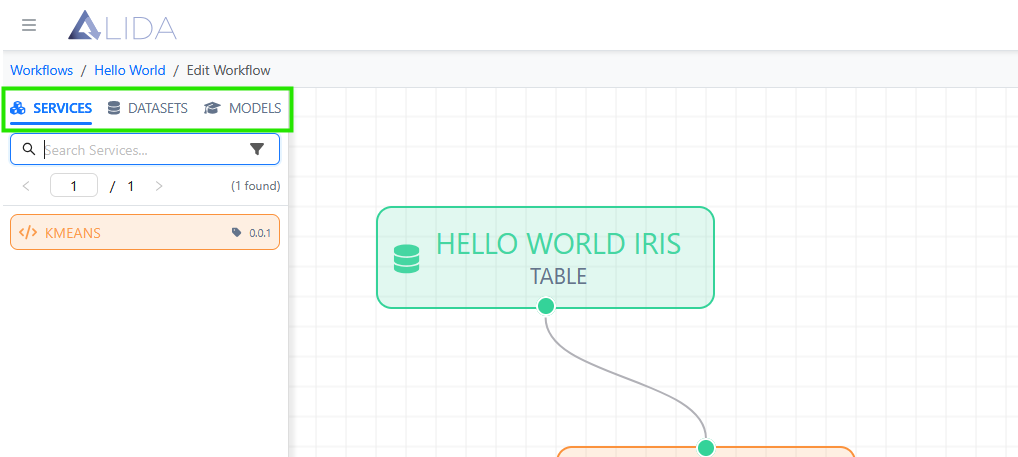
- Services: list of service micro-applications available to build the Workflow.
- Datasets: the recorded dataset on the Data Analytics System.
- Models: the available ML models.
All the three palette sections have:
- A search bar to find the wanted element in a brief time.
- Paginating system
Let's see the sigle section more in details.
Services
Here you can find the list of Available Services, identified by:
- Name (i.e.:
KMEANS,LINGOJAM-TRANSLATOR,TF-REGRESSOR-MLFLOW) - Version (i.e.:
1.0.1,1.0.2) - Orange Block

The section Palette Services, gives you the added opportunity to filter the Service in the list in:
- Categories: labelled according the implemented Service function (es. Analysis, Processing, Reporting, ...)
- Frameworks: labelled according the used technologies to implement the Service
- Tags: generic use lebels
Note
Labels can be created by the administrator through the Control Panel.
To access the filtering panel, follow the steps illustrated in the images below:
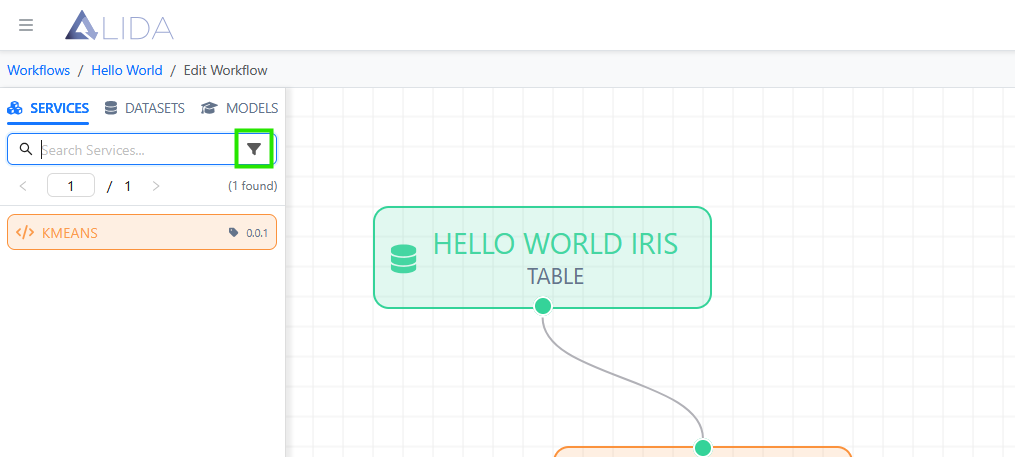
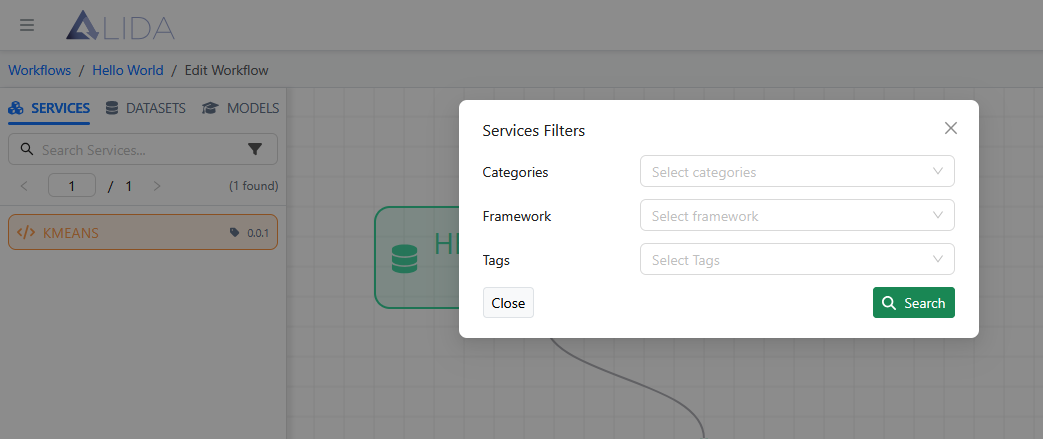
This filter enables easier navigation of the service list and allows you to quickly select only those relevant to the Workflow being constructed.
Datasets
In the Datasets section we can find the list of available datasets, identified by:
- Name (e.g.,
IRIS,TESTER,SCIKIT-LEARN/AUTO-MPG) - Type (e.g.,
TABLE– structured tabular dataset) - Green block indicator

Models
Within the Models section, you will find the list of available models, identified by:
- Name (e.g.,
MODEL CREATED BY TEST MLFLOW,MODEL CREATED BY KNN ON NOCC) - Creation date and time
- Blue block indicator
